
Introduction: Free Doesn't Have to Mean Frustrating
You have a logo, a design, or maybe just a fun picture you want to embroider. You fire up your Brother machine, but it needs a PES file. You do not have one. You do not have software. And you definitely do not want to spend money on something you might only use once.
So you start searching. Free converter. Instant download. No sign-up. Sounds too good to be true, right?
Well, it kind of is. But that does not mean you are out of luck. There are legitimate ways to Convert Image To PES File Free without breaking the bank or sacrificing your sanity.
I have been through the free converter rabbit hole myself. Some tools are decent for simple designs. Others are complete garbage. And a few require some learning but deliver real results.
Let me walk you through the actual free options available, what they can and cannot do, and how to avoid the common pitfalls that waste your time and ruin your fabric.
First, Understand What You Are Actually Doing
Before I dive into the tools, let me clear up a huge misunderstanding. You cannot just rename a JPG file to .pes and expect it to work. That is not how this works. That is not how any of this works.
A JPG file contains pixels. Tiny colored dots that look like a picture when you stand back. A PES file contains stitch data. It tells your machine where to move the needle, what type of stitch to use, when to change thread, and when to cut and jump.
Converting a JPG to PES requires digitizing. That means turning shapes into stitch instructions. Some tools do this automatically. Some require you to do it manually. The free ones fall into both categories.
The quality of the conversion depends entirely on the tool and the complexity of your design. A simple, bold logo with solid colors might convert okay. A detailed illustration with gradients and tiny text will not.
Option One: Free Online Converters (Fast and Simple)
If you want the quickest path from JPG to PES, online converters are your best bet. You upload your image, click a button, and download the result. No software installation. No learning curve.
OnlineConvertFree is one of the most popular options. It supports over 200 file formats, including PES. You upload your image from your computer, Google Drive, or Dropbox. Select PES as the output. Download the result. The site encrypts your files during transfer and deletes them after 24 hours. No registration, no watermarks, no email required.
SharkFoto offers a similar AI-powered converter that processes images entirely in the cloud. Fast and privacy-focused.
Pixel-Stitch and Stitchboard are designed more for cross-stitch patterns than machine embroidery. They generate printable PDF patterns with thread color matching for brands like DMC and Anchor. These are great if you are doing cross-stitch, but they do not output PES files for machine embroidery.
Here is the catch with all online converters. They are automated. They work fine for simple, bold designs with clear edges and solid colors. But they struggle with complex images, fine details, or subtle gradients. They often lack proper pull compensation, which leads to gaps or distortion when you stitch out the design.
If you are converting a simple icon or a basic logo, give it a try. Just understand the limitations and always test on scrap fabric before running production.
Option Two: Ink/Stitch (Free Software, More Control)
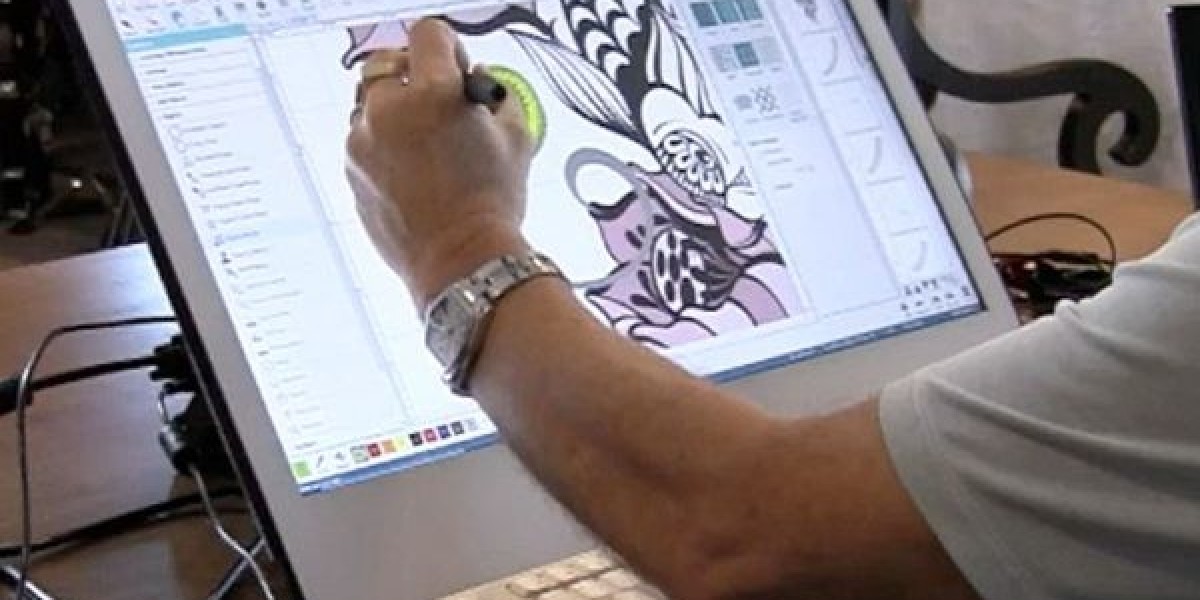
If you are willing to invest a little time in learning, Ink/Stitch is the best free software option available. It is an open-source embroidery digitizing plugin that runs inside Inkscape, a free vector graphics program.
Here is why Ink/Stitch stands out.
It is completely free. No hidden costs, no trial periods, no limitations. It runs on both Windows and Mac, which is rare for embroidery software. It gives you manual control over every stitch parameter. You can set fill types, satin borders, thread colors, and more. It exports to PES, DST, and many other formats. It has an active community and regular updates. Over 225,000 downloads in the past year.
But there is a catch. Ink/Stitch has a steep learning curve. It is not as simple as upload and download. You need to understand vector paths, layer management, and basic digitizing concepts.
If you are comfortable learning new software, Ink/Stitch can produce results that rival paid programs. If you just want a quick file and never want to think about digitizing again, this is not the path for you.
Option Three: Paid Software Free Trials
Several commercial embroidery programs offer free trials. Hatch Embroidery Digitizer gives you a 30-day trial, giving you access to professional-grade digitizing tools. You can explore features like manual and auto digitizing, over a hundred embroidery-ready fonts, monogramming, and appliqué.
Brother's Artspira app offers a free version with access to over 300 fonts, 500 embroidery designs, and basic image conversion. It runs on mobile devices, making it convenient and beginner-friendly.
These trials are great for one-off projects. But they are not truly free forever. Once the trial ends, you either pay or lose access.
Option Four: Professional Help on a Budget
If you have a complex logo or a commercial project, free tools might not cut it. Automated conversion can produce files that pucker, break thread, or look nothing like your original design.
Some professional digitizing services offer budget-friendly single-file conversion. You pay per design, but you get a file that is manually digitized by an expert. It costs more than free, but it saves you from wasting fabric, thread, and time.
For a standard logo, professional digitizing typically runs $15 to $25. That is often cheaper than buying software and cheaper than ruining a batch of shirts with a bad file.
Step-by-Step: How to Convert with OnlineConvertFree
If you want the simplest path, here is exactly how to use OnlineConvertFree.
Go to the website. Upload your JPG image. You can drag and drop or select from your computer, Google Drive, or Dropbox. Select PES as your output format. Wait for the conversion to complete. This usually takes a few seconds. Download your PES file.
That is it. No registration. No email. No watermarks.
Before you run a full production batch, stitch a test on scrap fabric identical to your final garment. Check for gaps, puckering, and thread breaks. If the test fails, the automated tool could not handle your design's complexity.
When Free Is Not Enough
Free tools are great for certain situations. Simple designs with bold shapes and solid colors. Hobby projects where perfection is not critical. Testing a design concept before committing to professional digitizing. One-off personal projects that do not need to look perfect.
But free tools have real limitations.
They struggle with complex images. Fine details, gradients, and intricate curves often come out distorted. They lack pull compensation, which means designs can shrink or warp when stitched. They do not account for fabric type. A design that works on woven cotton might fail on stretchy fleece.
For logos, brand merchandise, or any project where quality matters, free tools are a gamble. Professional digitizing gives you a file that runs clean on the first test. It saves time, thread, and frustration.
Conclusion: Start Free, But Know the Limits
Converting JPG images to PES files for free is absolutely possible. OnlineConvertFree gives you instant results for simple designs. Ink/Stitch offers powerful free software if you are willing to learn. Free trials of paid programs let you test professional tools before buying.
But free tools have limits. They struggle with complex designs. They do not handle pull compensation well. They can produce files that look fine on screen but fail on your machine.
For personal projects, simple logos, and testing, free tools are a great starting point. For professional work, complex logos, or large production runs, professional digitizing is worth the investment.
Start with a free converter and test the result. If it passes, great. If it fails, you still have options. And you did not waste money finding out.